How to Set Up a WhatsApp Hiring Flow Without Losing Your Mind
How to Set Up a WhatsApp Hiring Flow Without Losing Your Mind

Introduction
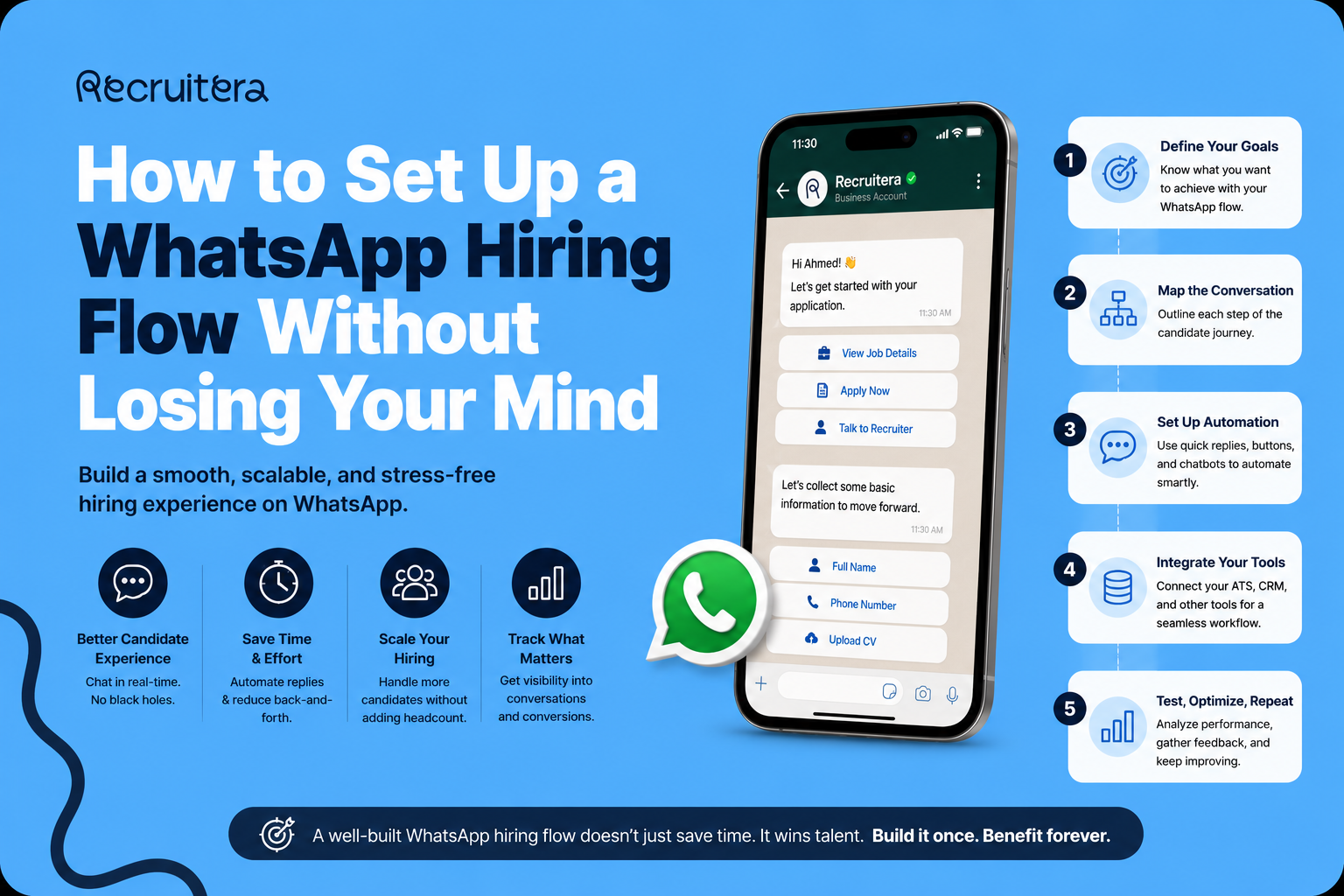
WhatsApp is already part of how most HR teams in Egypt communicate with candidates. The question is not whether to use it — it is how to use it properly. And for many HR managers who have heard about WhatsApp Business API integration, the answer feels complicated before they have even started. META Business Portfolio. API connection. Template submission. Approval timelines. Dedicated phone numbers. It sounds like an IT project, not an HR initiative. It is not. This guide walks through the complete process — from zero to a live WhatsApp hiring flow.
Before You Start — The Two Things You Need
Every WhatsApp hiring setup requires two things before anything else can happen.
A META Business Portfolio. If your company runs Facebook or Instagram ads, you likely already have one. If not, creating one is free and takes about fifteen minutes at business.facebook.com.
A brand new phone number. This is the number that will become your company's WhatsApp hiring number. It must never have been registered on WhatsApp before — not on personal WhatsApp, not on WhatsApp Business. A brand new SIM from any Egyptian carrier costs almost nothing and takes ten minutes to obtain.
Step 1 — Set Up Your META Business Portfolio
Go to business.facebook.com and click Create account. Enter your business name exactly as it should appear professionally. Enter your name and your business email address. Verify your email when prompted. Once inside the portfolio, go to Business Settings and add your business details.
Step 2 — Add Your WhatsApp Business Number to META
Inside your META Business Portfolio, navigate to Business Settings and find WhatsApp Accounts in the left sidebar. Click Add and follow the prompts to register your new phone number. META will send a verification code to the number via SMS or automated phone call. Once verified, set up your WhatsApp Business profile — add your company name, upload your company logo, and add a brief description.
Step 3 — Connect to Recruitera
Log in to your Recruitera account. Go to Settings in the left sidebar. Navigate to Integrations and find WhatsApp Hiring. Click Connect. You will be redirected to META to authorize the connection. Log in to your META Business account when prompted, select the WhatsApp Business account you want to connect, grant the required permissions, and click Continue.
Step 4 — Create Your First Templates
Every message sent outside a candidate-initiated 24-hour conversation window must use a pre-approved template. Create your templates before you need them. Go to Settings → Templates → WhatsApp in your Recruitera account. Click Create template. Choose your category carefully: Utility for transactional messages. Marketing for outreach. Write your message body, use merge tags, and submit for review. See the full guide: Creating & Submitting WhatsApp Templates.
Step 5 — Wait for Approval
META reviews templates against their Business Messaging Policy. Most templates are approved within minutes to a few hours. Some are rejected. See: The Recruiter's Guide to WhatsApp Templates for how to write templates that pass on the first try.
Step 6 — Decide on Your Number Strategy
If you hire for both blue collar and white collar roles, consider two separate numbers — one configured with an Arabic-language bot for blue collar candidates, one with an English-language bot for white collar candidates. Each number has its own language setting that applies to all automated messages.
Step 7 — Go Live
Once your templates are approved and your number is connected, your WhatsApp hiring flow is active. Candidates can message your company number directly. The bot handles the intake automatically. Your team monitors conversations inside Recruitera. Every message is logged against the candidate record. Explore bulk send to reach your full talent pool at once.
Frequently Asked Questions
How long does it take to set up WhatsApp Hiring on Recruitera?
The active setup work takes a few hours — creating a META Business Portfolio if needed, registering the phone number, connecting to Recruitera, and writing your first templates. The total elapsed time is typically one to three business days, with META's template approval being the main variable. The practical advice is to start the setup before you have an urgent role to fill.
Can I use my existing company WhatsApp number for WhatsApp Hiring?
Only if that number has never been registered on WhatsApp before in any form. If the number has any prior WhatsApp history, it cannot be used. Most existing company numbers have some prior WhatsApp association and cannot be repurposed. The recommended approach is to get a brand new SIM specifically for hiring.
What happens if META rejects my WhatsApp template?
The rejected template will show a Rejected status in Recruitera under Settings → Templates → WhatsApp. Review the rejection reason provided by META, edit the template, and resubmit. The most common rejection causes are promotional language in a Utility template, variables at the very beginning or end of the message, and ambiguous content.
Do I need a separate META Business Portfolio for WhatsApp Hiring?
No. If your company already has a META Business Portfolio, you can add WhatsApp Hiring to the same portfolio. You do not need a new portfolio. You do need a new, dedicated phone number that has never been registered on WhatsApp before.
Further Reading
Also read: Blue Collar Talent Is on WhatsApp. Is Your ATS?
Conclusion
The total active work is a few hours. The total elapsed time — including META's template approval — is typically one to three business days. Plan for that timeline. Start the setup before you have an urgent role to fill. Get your templates approved while things are quiet. When the next high-volume hiring push starts, your WhatsApp flow will be ready.
Huda Khaled is a Product Marketing professional at Recruitera, a MENA-focused applicant tracking system built by Basharsoft Group.
Ready to Hire Smarter?
Recruitera helps you see the person behind the resume. Book a quick demo and discover a better way to build your team.
Book a Demo

Recruiters' first go-to knowledge hub.
Visit resources →Practical guides on sourcing, interviewing and employer branding in MENA.
Read the blog →Job descriptions, offer letters, interview scorecards and onboarding checklists, ready to copy.
Browse templates →New features, improvements and release notes from the Recruitera team.
See what's new →